A new server, a new host, or leaving Matomo Cloud: sooner or later most Matomo instances move. Matomo's FAQ covers the move in a handful of steps. Data usually gets lost elsewhere: in a version mismatch, in a freshly generated salt, or in the hours when tracking requests hit a server that no longer records them.
This guide covers preparation, database, files, switch-over and verification, and ends with a checklist. The commands assume a self-hosted Matomo on Linux.
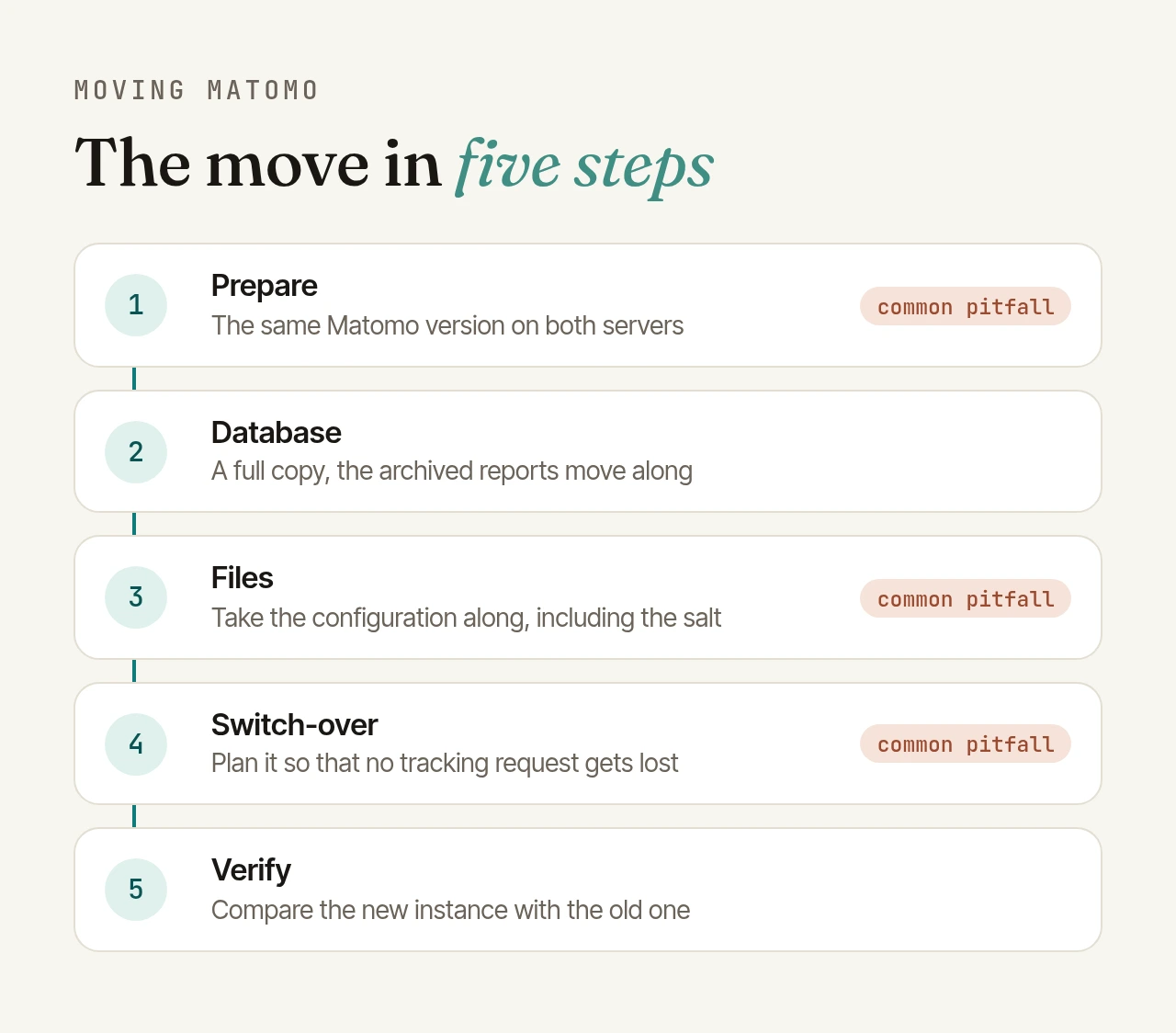
Prepare: the same version on both servers#
Start by noting the version of the old instance:
./console core:version
Install exactly this version on the new server; older releases are available on builds.matomo.org. Matomo recommends this explicitly: a newer version will probably work, but it can trigger an automatic data migration that can leave the new server unusable for minutes or hours, depending on how much data you have.
That leads to a simple rule: never migrate and upgrade in one go. Move with the same version and upgrade afterwards, or upgrade on the old server first. If Matomo 6 is on your roadmap anyway, our Matomo 6 upgrade checklist lists the new requirements.
Before migration day, also:
- Check the requirements of the new environment: PHP and database versions that match your Matomo version, the recommended PHP extensions, and a database user with the privileges Matomo needs (among them CREATE, ALTER, DROP and LOCK TABLES).
- Do a dry run on a copy: dump, import and start once end to end, and time it. Plan the maintenance window from that.
- Lower the DNS TTL if the hostname stays the same (more on this below).
Move the database#
For a full copy, Matomo suggests this command:
mysqldump --extended-insert --no-autocommit --quick --single-transaction \
  MATOMO_DATABASE_NAME -u MATOMO_DATABASE_USERNAME -p > matomo_backup_database.sql
--single-transaction gives you a consistent snapshot of InnoDB tables without blocking running applications. --quick reads large tables row by row instead of buffering them in memory. The MySQL manual adds one caveat: while the dump runs, no other connection should create, alter or drop tables. Matomo creates archive tables automatically, one set per month, so pause the archiving cron during the dump.
On the new server, import it with:
mysql MATOMO_DATABASE_NAME -u MATOMO_DATABASE_USERNAME -p < matomo_backup_database.sql
Keep the same table prefix (matomo_ by default) and Matomo will pick up your existing websites and reports right away.
Large databases: the MySQL manual itself says mysqldump is not a fast or scalable solution for large amounts of data. Restoring in particular can be very slow. For large instances it recommends physical backups or the parallel dump and load utilities in MySQL Shell. Your dry run tells you which route you need.
Move the files#
Matomo's advice is to move the whole Matomo directory. For a fresh install on the new server, carry these parts over explicitly:
config/config.ini.phpwith the database credentials, the list of activated plugins,trusted_hostsand thesaltin the[General]section. Update the database credentials, keep everything else.plugins/with all plugins from the Marketplace and other vendors, in the same versions as on the old server.misc/user/with your custom logo and favicon.misc/*.mmdb, the DB-IP or MaxMind geolocation database, if you installed it by hand. Alternatively, download it again from the geolocation settings.js/container_*.js, the published Tag Manager containers. If they are missing,./console tagmanager:regenerate-released-containersrebuilds them.
Leave out the tmp/ folder; Matomo's instructions for moving to a new domain say to delete it. After copying, check file permissions: PHP must be able to read the plugins and write to tmp/.
The salt: the easily missed detail#
The installer generates a new random salt on every fresh install, even if, as Matomo's FAQ describes, you only point it at the imported database. That matters: Matomo stores API tokens only as a hash of token plus salt. With a new salt none of the stored hashes match, and every integration that uses a token_auth loses access, from dashboards in other tools to export scripts. So always carry over the old config.ini.php, or at least its salt.
Paid plugins and licences#
Matomo stores the licence key for Marketplace premium plugins in the database, so it moves with the dump. According to the Marketplace FAQ, a subscription covers one production instance plus one test or development instance. After the move the new instance is the production one; don't keep the old one running alongside it. For plugins from other vendors their own licence terms apply; check the move with them beforehand.
No tracking gap: the switch-over#
Matomo's migration FAQ warns that visits are not tracked during the move. With some planning you can close that gap.
Keep the hostname. If Matomo stays on the same address, for example analytics.example.org, the tracking code on your websites doesn't change. If the address changes, you have to update the code on every page and add the new name to trusted_hosts.
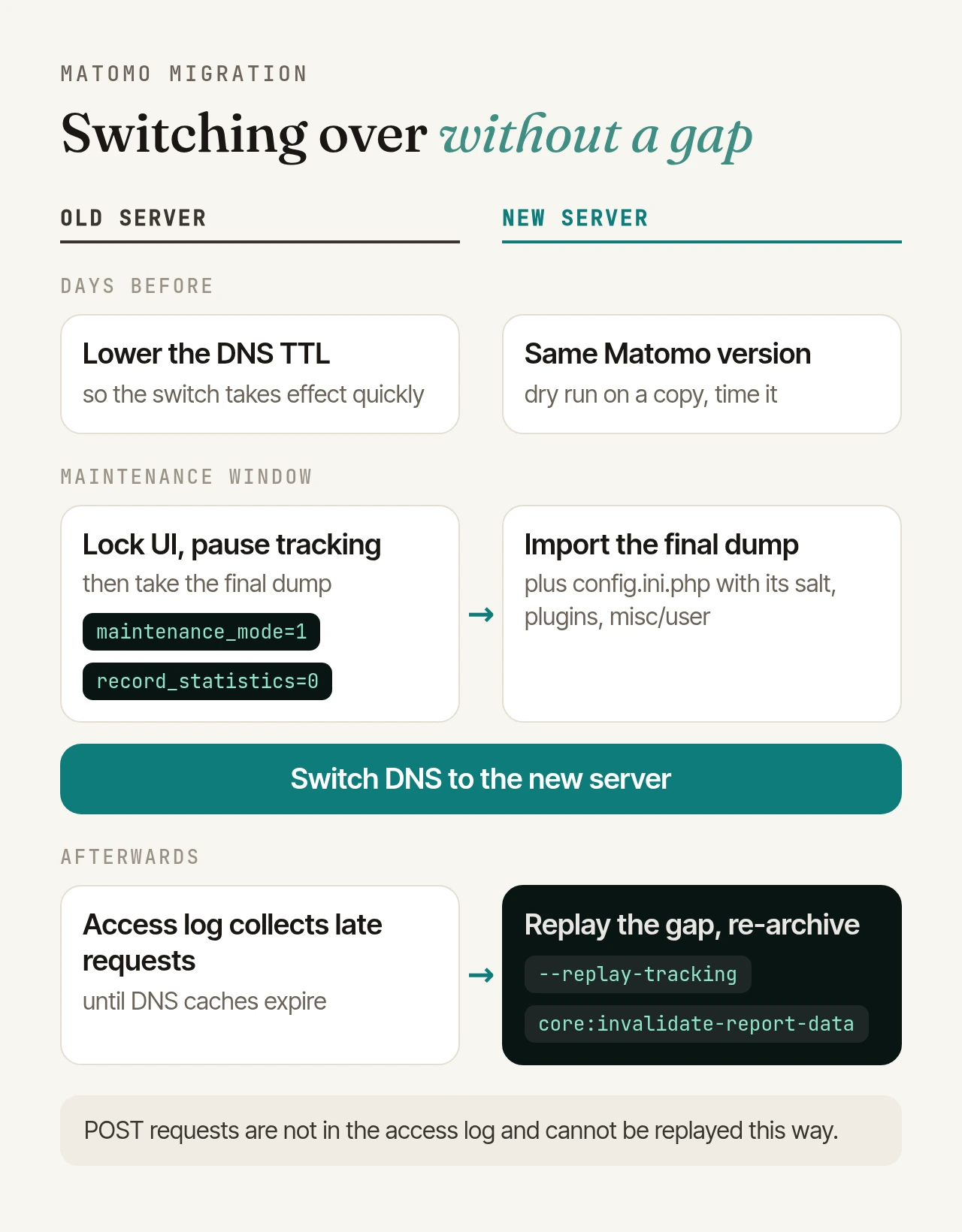
Lower the TTL early. Resolvers may cache a DNS record for as long as its TTL says. So lower the TTL at least as long before the move as the old TTL lasts, and the switch will take effect quickly. Test the new server beforehand via your computer's hosts file.
Freeze the old server. At the start of the maintenance window, stop the archiving cron on the old server, lock the UI and pause tracking:
./console config:set General.maintenance_mode=1
./console config:set Tracker.record_statistics=0
The lock stops anyone from adding websites, goals or users that the final dump would miss. The web server keeps accepting tracking requests and writes them to its access log, provided access logging is on. Then take the final dump, import it and switch DNS.
Replay the gap. Until all caches have expired, some requests still reach the old server. Collect every line containing matomo.php or piwik.php since the pause began, sort them chronologically, copy the file to the new server and replay it there with the log importer:
./misc/log-analytics/import_logs.py --url=https://analytics.example.org \
  --replay-tracking matomo-gap.log
Matomo points out one limit: POST requests are not in the access log, so they can't be replayed this way. Form, media and heatmap data and the heartbeat timer are the usual candidates.
Keep the cron on the old server switched off. Otherwise archiving and scheduled email reports may keep running there, and your recipients get every report twice.
Archiving after the move#
Processed reports live in the archive tables and move with the dump, so there is no need to re-process everything. Three things still need doing.
Set up the cron. The archiving cron has to be created again on the new server, for example hourly with ./console core:archive --matomo-domain=https://analytics.example.org. Add browser_archiving_disabled_enforce = 1 to the [General] section so the UI stops processing reports on demand.
Re-process the replayed days. If reports for a day were already archived, data imported afterwards only shows up once that day is processed again. Matomo automatically includes the weeks, months and years that contain those days:
./console core:invalidate-report-data --dates=2026-10-27,2026-10-28 --sites=1,3
./console core:archive --matomo-domain=https://analytics.example.org
Only invalidate where raw data exists. If regular deletion of old raw data is enabled, reports for deleted periods cannot be rebuilt. So never invalidate all periods across the board.
Verify: new instance against old#
Before you shut down the old server, compare both instances:
- System check: Administration > Diagnostic > System Check, or
./console diagnostics:run, should show no errors or warnings. - Numbers: open the same closed periods in both instances, for example the last twelve months per website. The figures must match. Right after the import, before switching DNS, the row counts of
matomo_log_visitandmatomo_log_link_visit_actionshould also be identical on both servers. - Tracking: load a test page and check that the visit appears under "Visits in real-time".
- Scheduled reports: send an existing email report as a test, or check delivery with
./console core:test-email your-address@example.org. Mail setup often differs on a new server. - Users and tokens: log in with a regular account, then test every API integration with its existing token.
- Plugins, locations, logo: all plugins active, visitors geolocated correctly, logo and favicon in place.
If everything matches, keep the old server reachable until its access log shows no more tracking requests.
Matomo Cloud: moving in or out#
From Matomo Cloud to your own server: for any paid Cloud plan, Matomo's support provides a database dump on request; trials are excluded. The dump always covers the entire database; delete the websites you don't need afterwards. Matomo documents two blockers: the Cloud instance may run a version labelled "alpha", which you then install exactly as is (Matomo says these builds are production-ready), and the export may have no table prefix, in which case you install without one. Think about licences too: Cloud plans include all Matomo features, while on your own instance premium plugins are licensed individually or in bundles.
From your own server to Matomo Cloud: for paid plans Matomo migrates the entire database free of charge via a migration form.
Moving only some websites: the "Migration" plugin from the Marketplace copies a website with its raw data and reports into another Matomo instance. It gets a new ID there, so the tracking code must be updated. Both instances need the same Matomo version, and the plugin currently does not migrate premium feature data.
Migration checklist#
- Note the version with
./console core:versionand install exactly that version on the new server. - Check the requirements and database privileges, and plan any upgrade as a separate step.
- Lower the DNS TTL in good time.
- Dry run: dump, import, start, time it, test via the hosts file.
- Maintenance window: old server set to
maintenance_mode=1andrecord_statistics=0, cron off. - Final dump and import with the same table prefix.
- Copy the files:
config.ini.phpwith its salt, plugins,misc/user/, geolocation database, Tag Manager containers. - Switch DNS, set up the cron on the new server.
- Replay the gap from the old server's access log, invalidate the affected days and archive them.
- Verify: system check, numbers, real-time, email report, tokens.
- Shut down the old server once no more requests arrive; delete its data when you no longer need it.
New host, new contract#
A provider that runs your instance processes the data on your behalf, so Art. 28 GDPR requires a data processing agreement with the new host. Your instance's privacy settings, such as IP anonymisation and data retention, move with the database and configuration. Check them afterwards anyway; the decisions stay with you and your data protection officer. This is a technical overview, not legal advice.
If you'd rather not handle the move yourself: with our managed Matomo hosting the migration is included, with raw data, reports, users and settings. Before the switch we check the new instance against your current one, whether you're coming from your own server or from Matomo Cloud.